Vacation Rental Wi-Fi Setup: A Guide for Property Managers
Plan your vacation rental Wi-Fi setup: pick equipment, secure the router, run a separate guest network, cover every room and handle outages without stress.

A good vacation rental Wi-Fi setup gives guests fast, easy access on their own network while keeping the router, the property's smart devices and your accounts secure. It comes down to the right equipment, a hardened router, a separate guest network, full coverage and a clear plan for outages.
For broader small-business security basics, NIST's Small Business Cybersecurity Corner is a useful companion.
Key Takeaways
Rental Wi-Fi works best when it is set up like an operating system, documented, secured and checked at every turnover, rather than installed once and forgotten.
| Point | Details |
|---|---|
| Control the router | Get admin access, change default credentials and store them in a password manager. |
| Use strong encryption | CISA recommends WPA3 Personal; also disable WPS and keep the firewall on. |
| Separate guests | Run a guest network apart from smart locks, thermostats and staff devices. |
| Cover every guest space | Test each bedroom, workspace and outdoor area and add access points where needed. |
| Plan for outages | Give guests one simple fix, then escalate, log and assign the repair. |
Table of Contents
- Why Does Wi-Fi Matter So Much in a Vacation Rental?
- What Equipment Does a Vacation Rental Wi-Fi Setup Need?
- How Should You Secure the Rental's Router?
- How Do You Set Up a Guest Network and Password?
- How Do You Get Full Coverage Throughout the Property?
- Vacation Rental Wi-Fi Setup Checklist
- How Should You Share Wi-Fi Details With Guests?
- What Should Happen When the Wi-Fi Goes Down?
- What Operators Get Wrong About Vacation Rental Wi-Fi
- How RealtevoOS Handles Wi-Fi Questions and Outages
- Frequently Asked Questions About Vacation Rental Wi-Fi Setup
- Sources
Why Does Wi-Fi Matter So Much in a Vacation Rental?
Wi-Fi matters because guests treat it as basic infrastructure, like hot water: when it works nobody notices, and when it fails it becomes the main topic of the stay.
- Guests work and stream — remote workers, families with tablets and travelers planning their days all depend on a stable connection from the moment they arrive.
- Wi-Fi problems become messages — a weak signal in one bedroom or a forgotten password turns into a late-night message to your team, and a recurring problem tends to show up in reviews.
- It is a security surface — every network connected to the internet is exposed to outside threats. CISA notes that most attacks are not personal and can occur on any network, big or small, home or business (CISA — Home Network Security).
Treat Wi-Fi as part of the property's operating standard, with a documented setup, a turnover check and an outage plan, rather than something the owner installed once and forgot.
What Equipment Does a Vacation Rental Wi-Fi Setup Need?
A reliable setup needs a business-grade or current-generation router you control, enough access points to cover every guest space, and a simple way to restart or check the equipment remotely.
- Internet service — choose a plan sized for several people streaming and video-calling at once. Ask the provider about outage support and how quickly they dispatch technicians in your area.
- A router you own or administer — you need access to the admin settings to change passwords, set up a guest network and install firmware updates. Record who holds the admin login.
- Mesh units or access points — larger homes, multi-level properties and casitas usually need more than one access point. Mesh systems are easier to manage for most operators.
- Current security support — look for equipment that supports WPA3. The Wi-Fi Alliance states WPA3 is mandatory for Wi-Fi CERTIFIED devices and gives WPA3-Personal users increased protection from password-guessing attempts (Wi-Fi Alliance — Security).
How Should You Secure the Rental's Router?
Secure the router by changing default credentials, using the strongest encryption it supports, turning off risky convenience features and keeping firmware updated.
CISA's home network guidance maps closely to what a rental needs (CISA — Home Network Security):
- Change the default admin password — default credentials may be published online or printed on the device itself. A guest with physical access to the router can read the label.
- Use the strongest encryption available — CISA recommends WPA3 Personal as the most secure router configuration currently available for home use.
- Rename the network (SSID) — default names often identify the manufacturer or model. CISA advises making the SSID unique and not tied to your identity or location — a friendly name that doesn't include the street address works well.
- Disable WPS — CISA explains that a design flaw in the Wi-Fi Protected Setup PIN method reveals when the first half of the eight-digit PIN is correct, which makes brute-force attacks much easier.
- Confirm the firewall is on — most routers include a built-in firewall, but CISA notes some features, including the firewall itself, may be turned off by default.
- Turn on automatic updates — CISA recommends installing updates as soon as possible and enabling automatic updates wherever a device offers them (CISA — Update Software).
Also protect the accounts behind the network. Turn on multifactor authentication for the internet provider account and the router or mesh app; CISA points out that even if a password is stolen, an attacker can't complete the second step (CISA — Turn On MFA).
How Do You Set Up a Guest Network and Password?
Put guests on their own network, separate from the devices that run the property, and give that network a strong, easy-to-type password you can change on your schedule.
- Separate guest and operations traffic — most current routers can broadcast a guest network. Keep smart locks, cameras outside the home, thermostats and any staff devices on a separate network guests never join.
- Use a strong but typeable password — CISA describes strong passwords as long, random and unique, and suggests a passphrase of 5–7 unrelated words as one option (CISA — Require Strong Passwords). A passphrase is easier for guests to type on a TV remote than a string of symbols.
- Change it on a schedule — decide when the guest password changes — for example after long stays, after a problem guest, or on a fixed calendar — and update every place it is published at the same time.
Store the admin password in a password manager, not in a shared spreadsheet or the welcome book. CISA recommends password managers because they generate, fill and store complex passwords securely.
How Do You Get Full Coverage Throughout the Property?
Get full coverage by testing every room guests use, then adding or moving access points until each bedroom, workspace and outdoor living area has a usable signal.
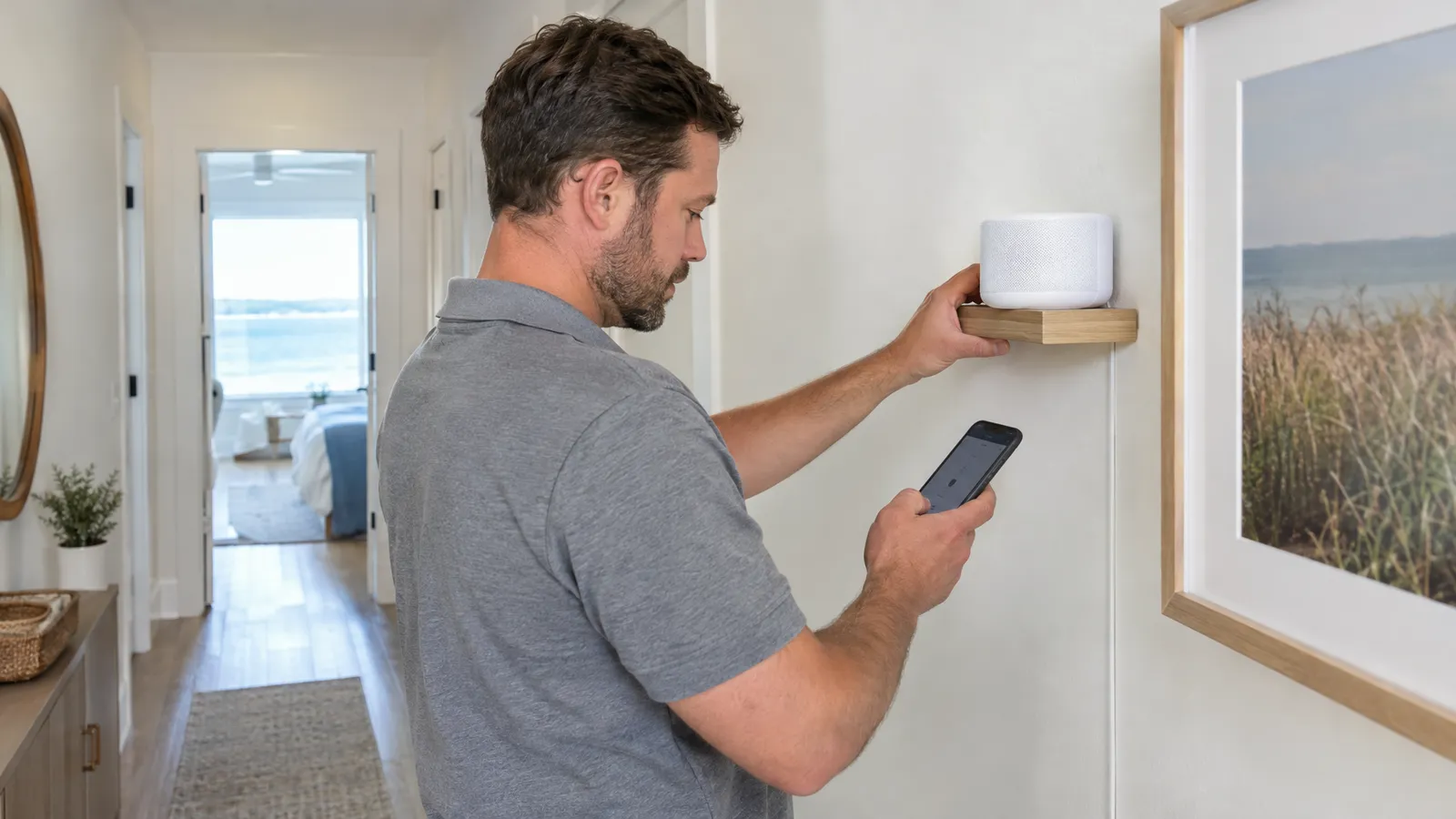
- Walk the property with a phone — run a speed test in each bedroom, the kitchen, any desk area, the patio and the pool deck. Note the dead spots.
- Place units centrally and up high — routers tucked inside cabinets, behind TVs or in a far corner of the garage leave large parts of the home weak.
- Mind the edges — CISA notes that a Wi-Fi signal often reaches beyond the walls of a home and suggests adjusting placement and signal strength to limit coverage outside the perimeter. Aim for strong coverage inside and in guest outdoor areas, not across the street.
Vacation Rental Wi-Fi Setup Checklist
Use this checklist when onboarding a new property or auditing an existing one.
- Confirm the internet plan, account holder and provider support number.
- Gain admin access to the router or mesh app and store the credentials in a password manager.
- Change the default admin password and username, if the router allows it.
- Enable WPA3 Personal (or the strongest option the equipment supports).
- Rename the SSID to something unique that doesn't include the street address or owner's name.
- Disable WPS and, unless a device needs it, UPnP.
- Confirm the router firewall is on and automatic firmware updates are enabled.
- Turn on multifactor authentication for the provider account and router app.
- Create a separate guest network with a strong passphrase; keep property devices on their own network.
- Walk the property, test each guest space and add access points where coverage is weak.
- Publish the guest network name and password in the welcome book, check-in message and a small card in the home.
- Write a one-page troubleshooting guide for guests and an escalation path for staff.
- Add a Wi-Fi check to the turnover inspection and log the result.
If you are building the guest-facing pieces, our guides to the vacation rental welcome book and check-in instructions cover where Wi-Fi details belong.
How Should You Share Wi-Fi Details With Guests?
Share the network name and password in every place a guest will look — the pre-arrival message, the digital guidebook and a card inside the home — so nobody has to ask.
- Pre-arrival message — include the network name and password with the door code so guests can connect as soon as they walk in.
- Printed card — a small framed card near the router or on the kitchen counter is often the first place guests check.
- Keep everything in sync — when you change the password, update the message templates, guidebook and printed card the same day.
This is also where an operating system earns its keep. RealtevoOS includes a unified guest inbox and 24/7 AI guest messaging, so a guest asking for the Wi-Fi password at midnight can get the current answer from your documented property details instead of waiting for someone to wake up.
What Should Happen When the Wi-Fi Goes Down?
When Wi-Fi fails, guests should be able to try one simple fix on their own, and your team should have a clear escalation path that ends with a technician or provider call.
- Guest restarts the router or mesh base using the steps in the guidebook.
- If that doesn't work, the guest messages your team, who check the router app remotely and power-cycle the equipment if possible.
- The team checks the provider's outage status for the area.
- If the problem is on-site, a maintenance task is created and assigned to a technician or the provider.
- The issue, fix and time to resolve are logged so repeat problems at one property are visible.
Connected devices deserve their own line in the plan. If a smart lock or thermostat depends on the network, know how it behaves offline and how guests get in if the connection drops. Our remote property monitoring setup guide covers how to watch device status across properties.
What Operators Get Wrong About Vacation Rental Wi-Fi
The most common mistakes come from treating Wi-Fi as a one-time install instead of a maintained system.
- Leaving factory defaults — default admin passwords and network names stay in place for years. CISA warns that default credentials may be readily available online.
- Printing the admin password — the label on the router or a note in the guidebook gives every guest the keys to the network settings.
- Never checking coverage — the router works fine in the living room, but the primary bedroom or back patio barely connects.
- Changing the password without updating templates — guests receive the old password, and your team spends the evening answering the same question.
How RealtevoOS Handles Wi-Fi Questions and Outages
RealtevoOS doesn't install or configure routers. It keeps the guest communication, documentation and maintenance follow-up around Wi-Fi in one place.
- Unified guest inbox and 24/7 AI guest messaging — answer Wi-Fi and troubleshooting questions consistently, day or night, from one inbox.
- AI that learns your SOPs — teach it each property's network name, router location and restart steps so answers match the current setup.
- Maintenance tracking — log Wi-Fi outages and equipment fixes per property so recurring problems are easy to spot.
- Crew coordination — add a Wi-Fi check to turnover tasks so cleaners and inspectors confirm the network works before the next arrival.
- Owner reports — show owners the maintenance work completed on their property, including connectivity fixes.
The network itself still needs a reliable provider, current equipment and a secure configuration. RealtevoOS makes sure the right information reaches the guest and the right task reaches the right person.
Frequently Asked Questions About Vacation Rental Wi-Fi Setup
How do I set up Wi-Fi for a vacation rental?
Get admin access to a current router, change the default admin password, enable WPA3 or the strongest encryption available, create a separate guest network with a strong passphrase, test coverage in every guest space and publish the details in your check-in message and guidebook.
Should a vacation rental have a separate guest Wi-Fi network?
Yes, in most cases. Keeping guests on their own network separates their devices from smart locks, thermostats and other equipment that runs the property, and lets you change the guest password without reconnecting your devices.
How often should I change the vacation rental Wi-Fi password?
Pick a schedule that fits the property, such as after long stays, after a problem guest or on a fixed calendar, and update every message template, guidebook and printed card the same day.
What is the most secure Wi-Fi setting for a rental?
CISA recommends WPA3 Personal as the most secure router configuration currently available for home use. Also change default credentials, disable WPS, keep the firewall on and turn on automatic updates.
What should guests do if the Wi-Fi stops working?
Give them one simple step, such as restarting the router as described in the guidebook, and a clear way to contact your team if that doesn't fix it. Your team can then check the equipment remotely, confirm provider outages and dispatch a technician.